You get only a few new rows in your data source, and yet you refresh full tables in your semantic model every day.
Or you change one small thing in Power Query and suddenly you are waiting an hour for the local model to reload. Or your data no longer fits into a .pbix. Or you hit a timeout during refresh.
Sounds familiar?
There is a smarter way: Incremental Refresh in Power BI. Instead of reloading everything, you refresh only a defined time window and leave the rest in peace. That usually means shorter refresh times, fewer timeouts, and semantic models that scale much better.
How it works
With Incremental Refresh, Power BI creates dynamic partitions. Depending on your refresh policy, some partitions refresh on schedule and others stay untouched.
How partitions look and how they behave deserves its own post. For now, you only need one key idea:
You define time-based rules, and Power BI turns them into partitions behind the scenes.
For a table with a DateTime column (a Date column transformed to DateTime is fine), you can define three “zones”:
Archived
Data that is loaded once and then left alone.
Incremental
Data that is refreshed on schedule.
Real time
The newest slice queried using DirectQuery.
Data older than your configured archive window is removed from the model. This is the classic rolling window pattern.

Requirements
Plans
Incremental refresh is supported for:
Power BI Pro
Power BI Premium
Premium per user
Power BI Embedded
The real time DirectQuery option is supported only for:
Premium
Premium per user
Power BI Embedded
Data sources
Incremental refresh and real time work best with structured, relational sources such as SQL databases and Azure Synapse.
Your data source must support filtering by date.
All partitions must query data from a single source and use one storage mode, Import or DirectQuery.
Configuration
1. Create RangeStart and RangeEnd parameters
In Power BI Desktop, select Transform data to open Power Query Editor.
Select Manage parameters, then create two parameters:
RangeStart
RangeEnd
Both must be type DateTime.
In Power BI Service, Power BI overrides these values per partition:
RangeStart becomes the partition start
RangeEnd becomes the partition end
Set the current values to a small window that loads fast. In Desktop, you will only see data from that window.
2. Filter the table using the parameters
Find your DateTime column and add a filter:
DateTimeColumn >= RangeStart
DateTimeColumn < RangeEnd
That “less than” on RangeEnd matters. It prevents overlap between partitions.
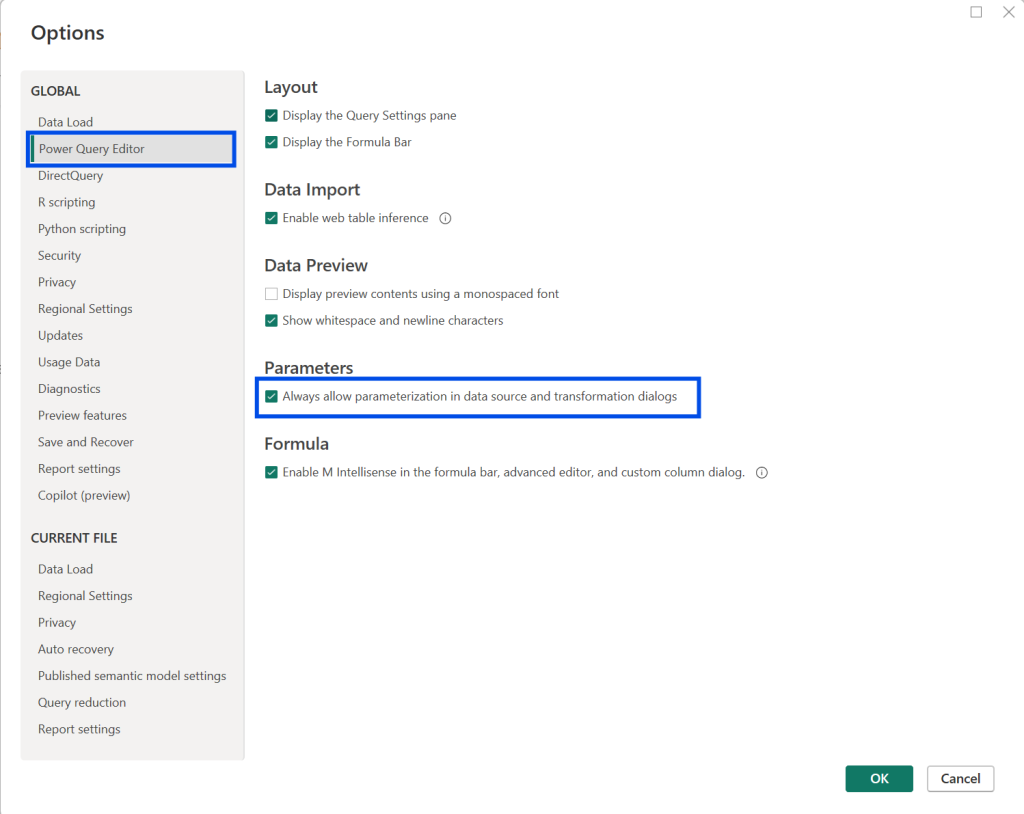
If you do not see the option to use parameters in the filter, check this setting in Desktop:
File -> Options and settings -> Options -> Power Query Editor -> Parameters
Enable “Always allow parameterization in data source and transformation dialogs”.
3. Set the incremental refresh policy
Switch to Model view in Power BI Desktop.
Select the table, open the menu (…), and choose Incremental refresh.
Enable “Incrementally refresh this table” and configure the ranges:
Archive data starting … before refresh date
How far back you keep history in the model. Older partitions become archived.
Incrementally refresh data … before refresh date
How much recent data gets refreshed each time.
Optional settings:
Get the latest data in real time with DirectQuery
Premium required.
Only refresh complete periods
Useful if you want full-day partitions only.
Detect data changes
Refresh only rows that changed, based on a “last modified” style column.
4. Publish and run the first refresh
Publish the semantic model to Power BI Service.
Trigger a manual refresh for the initial load, then configure your scheduled refresh.
My real life learnings
Snowflake and DateTime folding
I once had a table with a Date column and converted it to DateTime in Power Query. That worked fine with other sources, but with Snowflake the query stopped folding.
The type conversion happened after data retrieval, so the RangeStart and RangeEnd filter did not reduce the data at the source. Result: incremental refresh was set up, but refresh still took forever.
If possible, have a proper DateTime column already in the source, and always check that the query folds.
Initial load can still be too big
Incremental refresh helps with ongoing refreshes, but the first refresh still loads the full configured history. That means the same refresh limits still apply.
Power BI Pro models have a 2 hour refresh limit and do not support the real time DirectQuery option.
Premium capacity models have a 5 hour refresh limit.
If your reason for switching was timeouts, the initial load can still be the bottleneck. There is a workaround for this. I will cover it in a separate post.
Overlapping RangeStart and RangeEnd
Be careful with your filter operators. I once used “after or equal” and “before or equal” and my numbers were too high.
Power BI creates partitions where one ends exactly where the next begins. If you include both ends, boundary dates can land in two partitions.
Use:
DateTimeColumn >= RangeStart
DateTimeColumn < RangeEnd
DateTime column size
Pick your DateTime column wisely. If you use a timestamp with many unique values, compression will be worse. Power BI compresses best when values repeat.
In most models I use a Date column and convert it to DateTime so the time is always 00:00:00. That keeps compression similar to a Date column.