On my blog, you can already find a post where I show how to set everything up for scripting in Tabular Editor and explain how to work with the model. If you haven’t read it yet, click HERE.
In this post, I want to share how I use scripting in Power BI to make my life easier.
I like to use scripts to keep my semantic models consistent. They help me make sure that models follow the same structure, naming conventions are applied across different projects, and everyone who uses my models for reporting or ad hoc analysis can easily find what they need.
Because once you get used to a clean structure, you really do not want to hand-knit every measure one by one anymore.
Creating measures automatically from columns
The first thing I often use scripts for is creating measures automatically from columns.
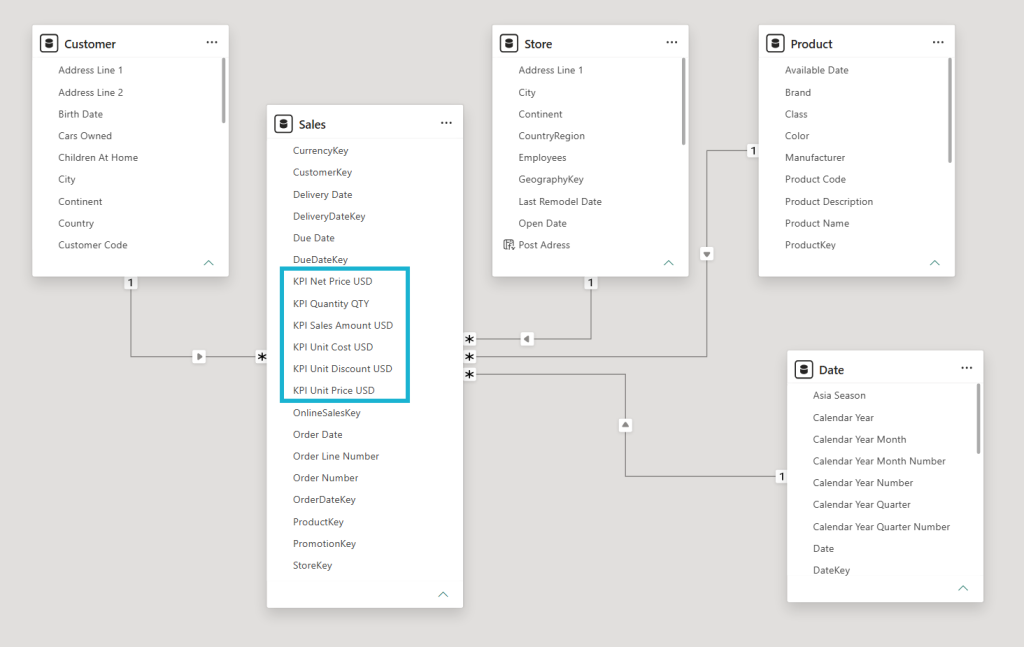
Most of the time, I add some information to the column names so I can quickly identify which columns should become measures. In this example, I added the prefix KPI to the columns in the Sales table that I want to turn into measures.
Now let’s open Tabular Editor, go to the C# Script tab, and paste the following code.
The script will go through all columns in the Sales table and look for columns that contain KPI . For each of those columns, it will create a measure with a simple SUM() expression.
For that, I use the .AddMeasure(Name, DAX Expression, DisplayFolder) function, which is available for every table in the model.
Run the code with the green arrow, and remember to save your changes with the disk icon. Otherwise, when you go back to Power BI Desktop, the measures will not be there.
// Table where I want to save my measures
var MeasuresTable = Model.Tables["_Measures"];

// Sales table where I can find columns that I want to turn into measures
var kpiSourceTable = Model.Tables["Sales"];

// Loop through all columns in the Sales table
foreach(var column in kpiSourceTable.Columns)
{
    // Condition to only create measures for columns containing "KPI "
    if (column.Name.Contains("KPI "))
    {
        // Using the .AddMeasure() function
        MeasuresTable.AddMeasure(
            column.Name,                                  // Name
            // column.DaxObjectFullName returns the TableName[ColumnName] combination.
            "SUM(" + column.DaxObjectFullName + ")",      // DAX expression
            "Generated from Columns"                      // Display folder
        );
    }
}
One important thing to remember: if you run the script again, it will not overwrite the existing measures. It will add new ones.
So to avoid duplicates, I usually clean up the measures before creating them again. You can delete all generated measures, or you can be more specific and delete only measures from a certain display folder.
In this example, I have a display folder named TO DELETE. I know, very creative.
The following script loops through the _Measures table and deletes all measures where the display folder contains TO DELETE.
Again, do not forget to save your changes.
var MeasuresTable = Model.Tables["_Measures"];

foreach(var m in MeasuresTable.Measures.Where(m => m.DisplayFolder.Contains("TO DELETE")).ToList())
{
    m.Delete();
}
Creating time intelligence measures
In the next example, I will iterate through the measures we created and generate time intelligence measures based on them.
Here I will create:
- AC for actuals, which simply repeats the base measure
- PY for previous year, using SAMEPERIODLASTYEAR
You can use the same approach to create any kind of measure you want. You could also use UDFs for this, but that is a topic for another post.
When I create new measures based on existing measures, I also like to clean up the names and remove prefixes or suffixes like KPI or BASE.
var MeasuresTable = Model.Tables["_Measures"];

var baseMeasures = MeasuresTable.Measures.Where(m => m.DisplayFolder == "Generated from BASE\\BASE").ToList();

foreach(var measure in baseMeasures)
{
    // Get the correct measure name
    var indexOfBase = measure.Name.IndexOf("BASE");
    var correctMeasureName = measure.Name.Substring(0, indexOfBase);

    // Add AC measure
    var new_AC_measure = MeasuresTable.AddMeasure(
        correctMeasureName + " AC",                      // Name
        measure.DaxObjectFullName,                       // DAX expression
        "Generated from BASE\\AC"                        // Display folder
    );

    // Add PY measure
    var new_PY_measure = MeasuresTable.AddMeasure(
        correctMeasureName + " PY",                                                       // Name
        "CALCULATE(" + measure.DaxObjectFullName + ", SAMEPERIODLASTYEAR('Date'[Date]))", // DAX expression
        "Generated from BASE\\PY"                                                        // Display folder
    );
}
Applying format strings automatically
The idea of adding extra information to names can be used for many things. One example I use quite often is formatting.
I often add information like INT, EUR, PRC, or DEC to a measure name, so I know how the measure should be formatted.
One thing that is important to understand: formatting and many other measure attributes have to be added after the measure is created. They are not part of the .AddMeasure() function itself.
With .AddMeasure() you create the measure first by defining its name, DAX expression, and display folder. After the measure exists, you can assign additional attributes to it.
That is why in the next script I first create the measure and save it into a variable:
var new_measure = MeasuresTable.AddMeasure(...)And only after that, I set the format string:
new_measure.FormatString = formatString;The same idea applies to many other properties. First, create or find the measure. Then update its attributes.
Then I can use a script to apply the correct format string automatically.
// Define all possible format strings for the measures
Dictionary<string, string> formatStrings = new Dictionary<string, string>();

formatStrings.Add("INT", "#,##0");
formatStrings.Add("DEC", "#,##0.00");
formatStrings.Add("EUR", "#,##0.00 €");
formatStrings.Add("PRC", "#,##0.0 %");
formatStrings.Add("€", "#,##0.00 €");
formatStrings.Add("%", "#,##0.0 %");

var formats = new List<string>() { "INT", "DEC", "EUR", "PRC", "€", "%" };

var MeasuresTable = Model.Tables["_Measures"];

var baseMeasures = MeasuresTable.Measures.Where(m => m.DisplayFolder == "Generated from BASE\\BASE").ToList();

foreach(var measure in baseMeasures)
{
    // Default format
    var formatString = "#,##0.00";

    // Find format for current measure
    foreach (var format in formats)
    {
        if(measure.Name.EndsWith(format))
        {
            formatString = formatStrings[format];
            break;
        }
    }

    // Get the correct measure name
    var indexOfBase = measure.Name.IndexOf("BASE");
    var correctMeasureName = measure.Name.Substring(0, indexOfBase);

    // Add measure
    var new_measure = MeasuresTable.AddMeasure(
        correctMeasureName,                              // Name
        measure.DaxObjectFullName,                       // DAX expression
        "Change format"                                  // Display folder
    );

    new_measure.FormatString = formatString;
}
This script checks the ending of each measure name and applies the corresponding format string. For example, a measure ending with EUR will get a currency format, and a measure ending with PRC will get a percentage format.
This is a small thing, but when you work with many measures, it saves a lot of clicking.
Final thoughts
These are just a few examples of scripts I use quite often when creating semantic models.
I usually try to write scripts in a way that makes them reusable across multiple models.
Once you get comfortable with scripting, you can use the same idea for many other repetitive modelling tasks, for example:
- hiding technical columns
- setting descriptions
- organising display folders
- applying naming conventions
- changing summarisation settings
- creating calculation groups
- checking whether required measures exist
- adding translations or perspectives
Of course, every project is different, but many tasks repeat again and again: creating measures, cleaning up naming, applying formatting, organizing display folders, hiding technical columns, and keeping the model tidy.
And this is exactly where Tabular Editor scripting shines.
Instead of manually fixing the same things model by model, you can create your own little collection of scripts and reuse them whenever you need them.
So next time you find yourself repeating the same boring model cleanup task again and again, maybe it is time to stop hand-knitting and let C# do a few stitches for you.
Let me know what scripts you use in your Power BI projects. I am always curious what others automate in their semantic models.