I love scripting because it turns boring and repetitive tasks, like creating measures and editing them, into a one click action. It also helps ensure everything is properly named and formatted. I use it mostly for generating measures from columns in my fct table and keeping them consistent with the company naming convention.
Doing something for the first time is hard. You have no idea where to start. You should have seen me with my first pair of knitting needles. So if you are new to scripting in Tabular Editor, I’ve got you. I will guide you step by step through setting up everything so you can script away.
What you’ll have after this post
Tabular Editor installed and visible in Power BI under External Tools.
Your model ready for changes.
Your first C# script running with console output.
1) Install Tabular Editor
First, install Tabular Editor. The open source version Tabular Editor 2 is enough to get started.
LINK
Optional: I also like to use a code editor like Visual Studio Code for writing and storing scripts, but it’s up to you.
2) Open Tabular Editor from Power BI
Open Power BI Desktop and go to External Tools. You should see Tabular Editor there.
3) Enable model editing
To be able to apply changes to your semantic model, we need to allow unsupported experimental Power BI features.
4) Your first script
Great. You are now ready to script.
Open the “C# Script” tab in Tabular Editor and run this with the green arrow on the top:
Output("Hello World");5) How the model is structured
In Tabular Editor you work with a hierarchy. At the top is Model, then Tables, then objects like Columns and Measures.
So if you want to access a specific measure, you go through:
Model → Tables → Your table → Measures → Your measure
Example:
Model.Tables["Your Table with Measures"].Measures["Your Measure"]Tip: you can drag and drop elements into the script window to generate the correct reference path automatically.
6) A slightly more useful starter script
If you want a quick “it works and it sees my model” check, run this to list tables with column and measure counts:
foreach (var t in Model.Tables)
{
   Console.WriteLine($"{t.Name} | Columns: {t.Columns.Count} | Measures: {t.Measures.Count}");
}
Where to find more examples
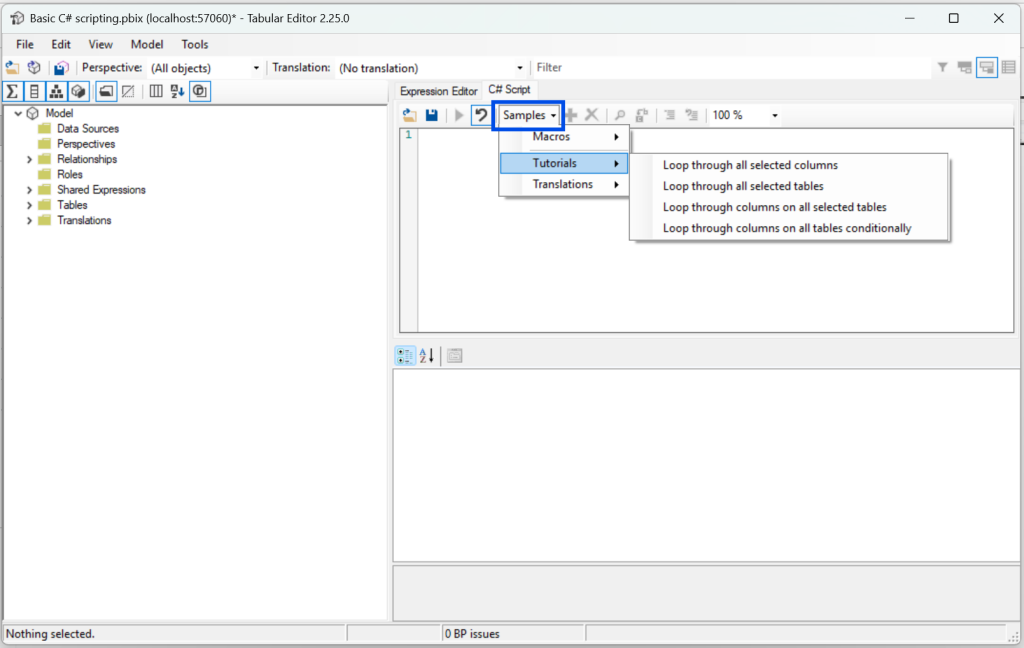
Under Samples in Tabular Editor you can find code examples, including loops through various objects.
That’s it for now. You are set up to script. Take a look at my other articles for more use cases and practical code snippets.
Have fun knitting scripts 🧶